
Allow Group and Family Bookings with Vibefam’s Fitness Class Booking Software

By Shoib Loya
(Updated: Jan 8, 2026 )
Number of inci (6)
If your studio runs group classes, you already know the two “real life” scenarios software should handle without drama:
  • One member wants to book extra spots for friends (bring-a-mate, “book 2 spots”, group trial nights).
  • A parent wants to manage bookings for a child (kids programmes, family memberships, academies).
In Vibefam, these are supported through Group Bookings and Family Accounts / Family Bookings, configured inside your admin portal and class schedules.

What are group bookings and family bookings in a fitness class booking system?

Group bookings let a member use their existing package credits to book more than one spot in a single booking flow, so friends can join the same class session. (Vibefam Support) Family accounts are designed for studios with families and children, where the parent wants to pay, manage packages, and book on behalf of a child or sub-account, without switching accounts. Children or sub-accounts do not log in on their own. (Vibefam Support) These are two different needs:
  • Group bookings are about bringing guests using a member’s package configuration.
  • Family accounts are about linked profiles and “booking for someone else”, typically children.

How Vibefam handles group classes, enrolments, and capacity limits

In Vibefam, a group class is a public class shown on your mobile app and booking website for members to browse and book into. Capacity is driven by your floor plan, which denotes the class capacity. (Vibefam Support) That matters for group and family bookings because the system still needs to respect:
  • total spots available (capacity),
  • how many additional spots one member can reserve (your limits),
  • how credits should be deducted.

How to set up a group class schedule with capacity limits in Vibefam

In your Vibefam admin portal:
  • Go to the Schedule tab
  • Select Add Event → Group Class
  • Fill in the class details (name, instructor, location, recurrence)
  • Choose or create a floor plan. This is what sets capacity, and you can auto-generate spots and customise the layout. (Vibefam Support)
At this point, you have a normal group class that members can book. Next, you decide whether that class should support guests and families.

How to enable group and family bookings for a specific class

Inside the same class setup screen, look for Advanced options and switch on Group and Family Bookings. When you enable it, you can also limit the number of additional spots a member can book for that class. (Vibefam Support) Two important notes from our setup guidance:
  • This “Group and Family Bookings” switch is a class-level control for allowing guest and family-account booking for that class. (Vibefam Support)
  • The availability of these features depends on the plan. Vibefam’s Most Popular plan explicitly includes Family Accounts and Group Bookings. (vibefam.com)
How to enable group bookings properly (package-level setup)

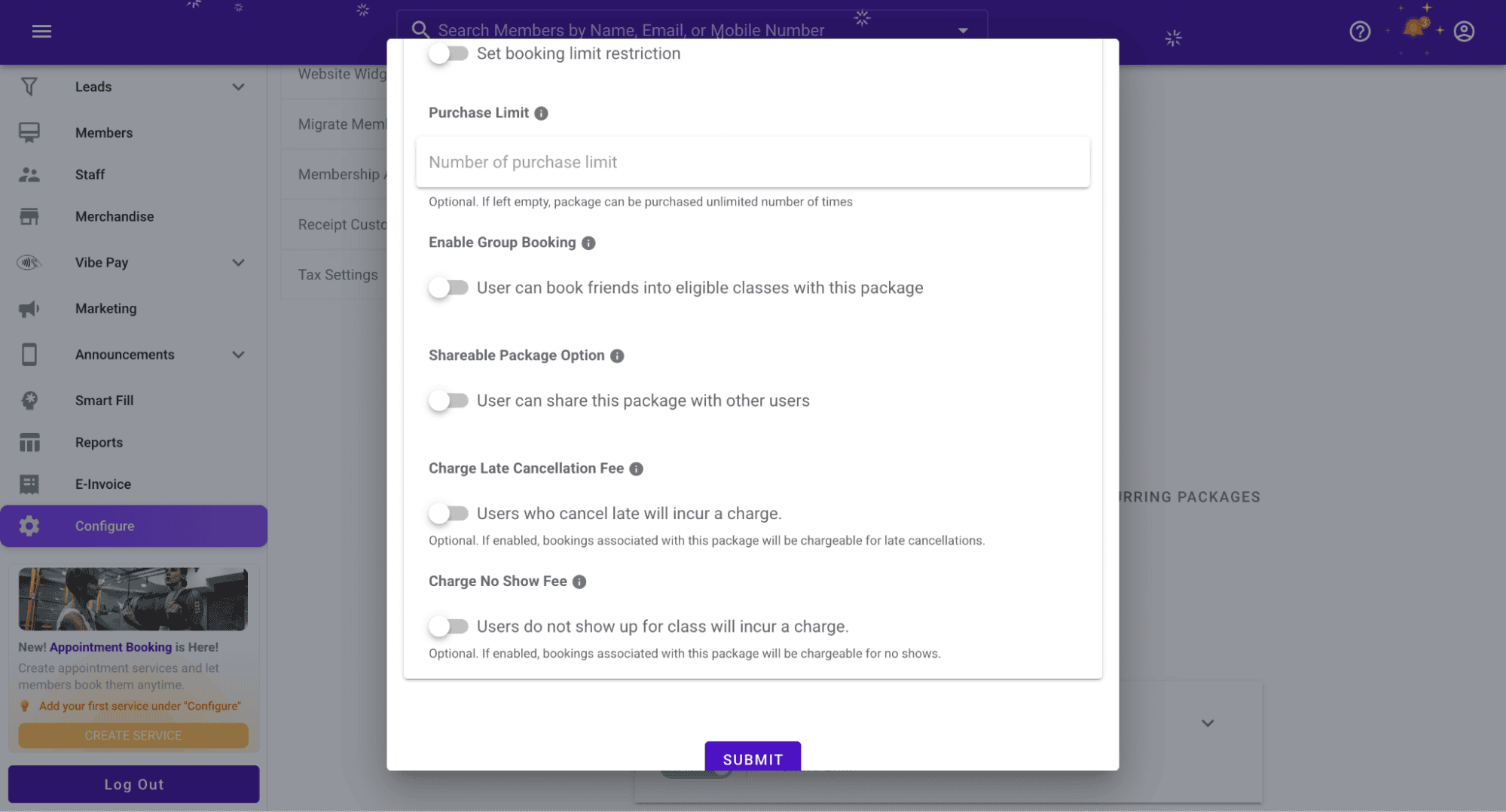
In Vibefam, group booking is enabled and configured from the package setup, because it relies on how many extra spots a package allows. To configure it:
  • Go to Configure → Package Options
  • Create a package or edit an existing one
  • Under Advanced Option, enable group booking
  • Set how many spots can be booked with that package. (Vibefam Support)
Practical takeaway: if you only switch on “Group and Family Bookings” inside the class schedule, but you never configured group booking rules in the package, you are likely to get confused behaviour later. Treat it as a two-part setup:
  • class-level permission (this class allows guests/family),
  • package-level entitlement (this package allows extra spots).

How credit deduction works when a member brings a guest

If you sell packages using credits, Vibefam lets you define the credit value of a class. Example from our class scheduling guide:
  • If a class has a credit value of 2, then 2 credits are deducted per booking.
  • If the member brings a guest, 4 credits are deducted in total (2 for the member + 2 for the guest). (Vibefam Support)
This is the core reason studios like guest bookings: you can support a “bring a friend” experience while keeping accounting clean and predictable.

How to set up family accounts (parent-child) so parents can book for kids

If your studio runs children’s programmes, term-based juniors, or family memberships, family accounts are usually the cleanest way to run it. Create and link a family member to a parent profile
  • Go to the Members tab
  • Find the parent’s main profile
  • Open the Family Account tab
  • Click Add Account and fill in the family member info (name, relationship, date of birth, email if applicable), then create. (Vibefam Support)
Vibefam’s guide also highlights the operating rule: child or sub-accounts do not log in themselves, and the parent purchases and books on their behalf. (Vibefam Support) Assign packages to the child (so bookings work properly) You can assign individual packages to each child under the parent profile:
  • Go to the parent’s profile
  • Open the Package tab
  • Select the package and assign it to the child account. (Vibefam Support)
After that, the parent can book classes for the child once the package is assigned. Operational detail that matters for staff: child bookings and schedule notifications go to the parent’s email address, which keeps comms consistent for families. When a child grows up, you can unlink the profile If needed, you can unlink a child profile and convert it into a standalone member account with its own payment. An email address is required for that conversion. (Vibefam Support)

What members experience when booking (guests and families)

Once group booking is enabled, members can book more than one spot (depending on the package configuration). (Vibefam Support) For family accounts, once the parent has assigned the package to the child or sub-account, the parent can proceed to book classes on their behalf without switching accounts. (Vibefam Support) This is the behaviour your ICP usually means when they ask:
  • “I need group sessions with easy enrollment management.”
  • “I need parents to book for kids.”

How staff and instructors manage enrolments and rosters in Vibefam

On the ops side, Vibefam is built so staff can actively manage schedules and booking scenarios from the admin portal: The Studio Owner FAQ references issues that occur “when adding a member to a class”, which reflects that staff can manage class enrolments from the portal. (Vibefam Support) When classes are full, staff can add members to a waitlist via the Schedule tab (select class → add members to waitlist). (Vibefam Support) You can also block spots for VIPs or special events (Schedule tab → select class → block spots). (Vibefam Support) For instructors, Vibefam’s instructor guide explicitly frames their workflow as accessing the backend for attendance taking and viewing schedules (via web admin portal or the Vibefam Business app), based on access rights set by the studio owner. (Vibefam Support So your booking experience stays member-friendly, while your team still has the controls they need to protect capacity and keep rosters accurate.

Common setup mistakes (and how to avoid them)

Mistake 1: Turning on guest booking for a class, but forgetting package-level group booking. Fix: Enable and configure group booking inside Configure → Package Options → Advanced Option and set the allowed spots. Mistake 2: Not setting a clear “additional spots per booking” limit. Fix: In the class schedule’s Advanced options, set the limit so group bookings do not swallow your entire capacity. Mistake 3: Setting up a child profile but not assigning a package to the child. Fix: Assign packages per child from the parent’s Package tab, then book. Mistake 4: Expecting the child to log in and self-manage. Reality: Vibefam’s family account guide notes child or sub-accounts do not log in themselves, and the parent books on their behalf.

FAQs: Allow group and family bookings with Vibefam’s fitness class booking software

What’s the difference between Group Bookings and Family Bookings?

Group bookings let a member use their existing package credits to reserve multiple spots in one booking flow (e.g., “book 2 spots” for friends). Family bookings are for parent/guardian-style accounts where the main account books on behalf of a child/sub-account. (Vibefam Support)

Can I enable guest/group booking for only certain classes?

Yes. Group booking is controlled at the class level via Advanced options → Group and Family Bookings inside the class setup screen. (Vibefam Support)

Can I limit how many extra spots someone can book in a class?

Yes. In the class schedule Advanced options, you can set a limit for the number of additional spots a member can book for that class. (Vibefam Support)

How does class capacity work when members book for friends or family?

Capacity is driven by your floor plan (“Floor plan denotes the capacity of the class”), so group/family bookings still consume spots from the same class capacity. (Vibefam Support)

Can I hide the floor plan/capacity from members while still enforcing it?

Yes. Vibefam notes you can hide spots/capacity from members; when switched off, members won’t see class capacity during booking. (Vibefam Support)

Ready to Transform Your Fitness Studio?

Discover how vibefam can help you streamline operations, boost member engagement, and grow your business.

Schedule a Free Demo